
1. Overview
This user guide is aimed to provide guidance to employees on how to connect to the Lemon Network remotely from home.
2. Step by Step Guidelines
2.1. Remote connecting from Home
Once the computer has started you will need to click on the up arrow at the bottom left of the screen near the time. This will show a number of icons we are looking for the grey globe:
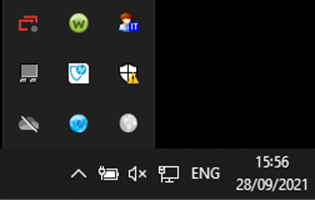
Click on the grey globe and press the ‘Connect’ button. A ‘Sign In’ box will appear, type in your username and password then press ‘Sign In’.
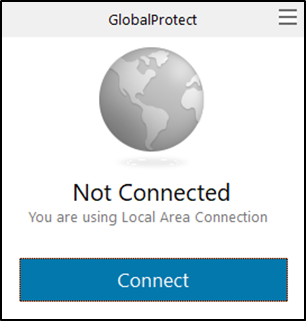
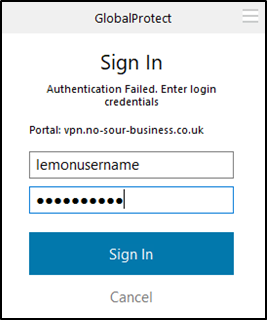
The box will say connecting and will show ‘Connected’ once everything is working.
You can now go onto the desktop and click on LBS-A-TS1 or LBS-B-TS1 desktop icon to connect to the terminal server.
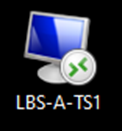
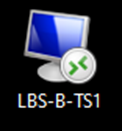
Enter your login details and connect to the terminal server.
Please Note: You may need to click on ‘More choices’ if the username already set is not yours. If this occurs, you will need to add lemon\yourusername into the username section (for example: lemon\jbloggs) when you first sign in.
Using Genesys Cloud on Laptop
When using the laptop to make calls via GC you must follow the steps below.
- You must have two sessions of GC open, one inside Terminal Server and another on the laptop itself. Open up Chrome in each of them spaces and log into GC.
- On either the terminal server or the laptop, when logged into GC, choose your WebRTC phone. To do this, select phone and type in your first initial and surname (eg jraine). As you type it should find a WebRTC phone for you. For example mine is Jraine WebRTC
- When answering calls you must answer from your laptop and not inside the terminal server
- To do this you would minimize your terminal server session and answer from GC shown on your laptop
3. Applicability
The Remote Connecting from Home user guide applies to all employees who have been given access to telework.
4. Responsibility
This user guide is the responsibility of the Compliance Department.